build
How I built my boyfriend a PA for RM5 a month
He runs his whole videography business alone, and his reminder system was me. So I built him one app for reminders, money, invoices, tax and finding clients. Here’s exactly how it works, and how to build your own.
 by Chloe · 5 November 2026 · 12 min read
The short version
- What
- A phone app that handles the admin of a one-person business: reminders, money in and out, invoices, payment chasing, tax, a morning briefing and new leads.
- For
- Freelancers and tiny teams who run their business out of WhatsApp chats and memory.
- Runs on
- A web app saved to the Home Screen, Claude AI, iPhone Shortcuts and Google’s free APIs.
- Costs
- About RM5 a month for the AI. Hosting is free, or US$20 a month for reminders every 5 minutes.
The problem
My boyfriend is a videographer. He’s also the editor, the finance department and the sales team. He doesn’t run a company, he is the company.
His business used to live in fourteen WhatsApp chats, the Notes app, an invoice spreadsheet called invoices_FINAL_v3.xlsx, a receipt somewhere in his car, and his brain, which was full.
And his reminder system was me. “Babe, remind me to pay TNB.” “Babe, did Kopi Lab pay yet?” “Babe, where’s that receipt?”
So instead of being the reminder system, I built one.
What it does
Nine things, all in one app on his phone. Every screenshot here is the real app with made-up data.
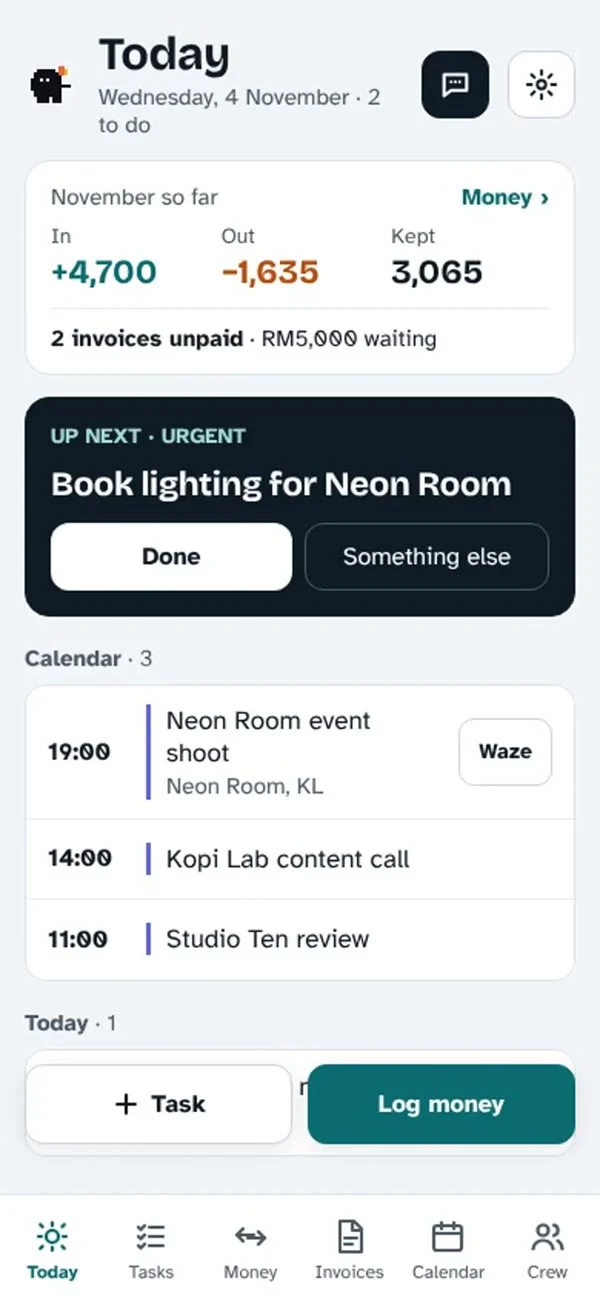
1. Reminders and today
The home screen shows what’s next, money this month and his Google Calendar. He taps done and the next thing moves up. Every to-do (work, home, groceries) is sorted by when it’s due, and he gets a push notification before each one.
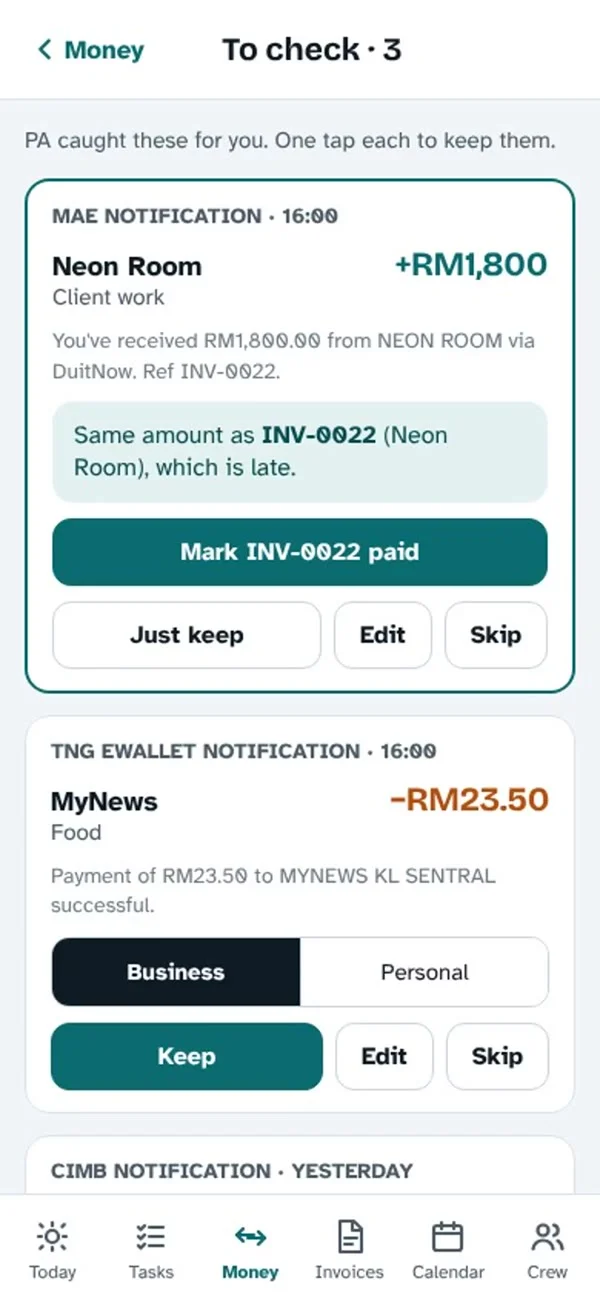
2. Money in, logged by itself
When money hits his bank, an iPhone Shortcut forwards the bank’s notification to the app. AI reads it and works out the amount, who it’s from and the category. If RM1,800 comes in and there’s an unpaid RM1,800 invoice, it suggests marking that invoice paid. One tap.
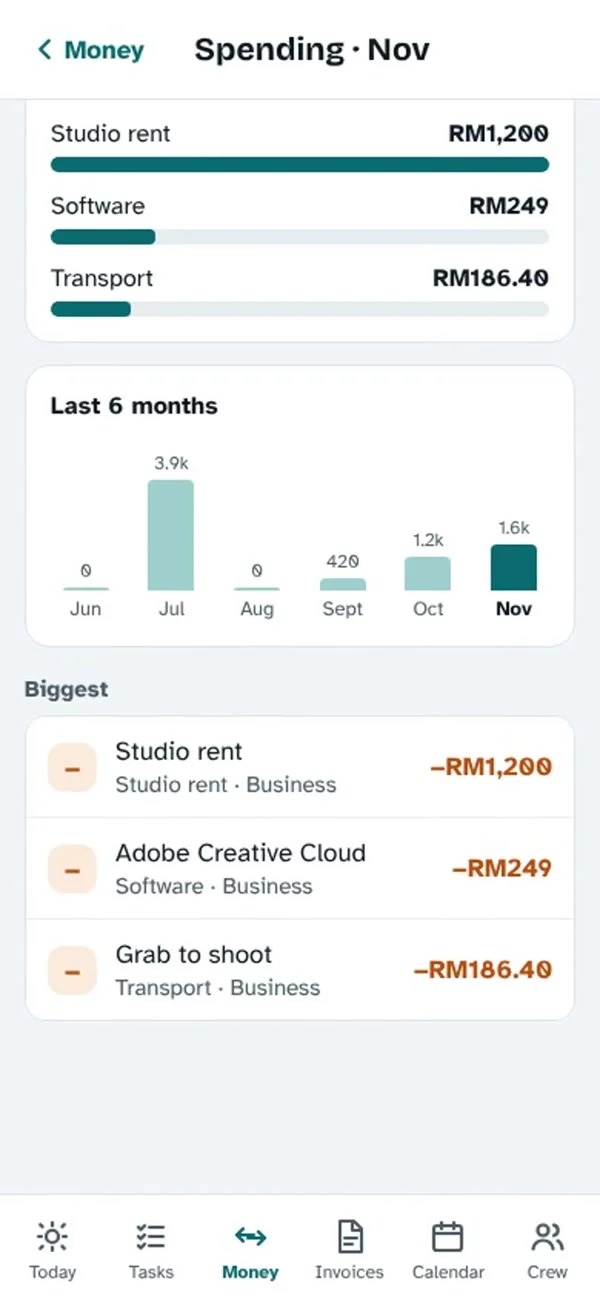
3. Spending, receipts and bills
Where the money went this month by category, compared with the last six months. Every bill and subscription with its due day. Snap a receipt and AI reads the shop, date and total, then saves the photo to Google Drive.
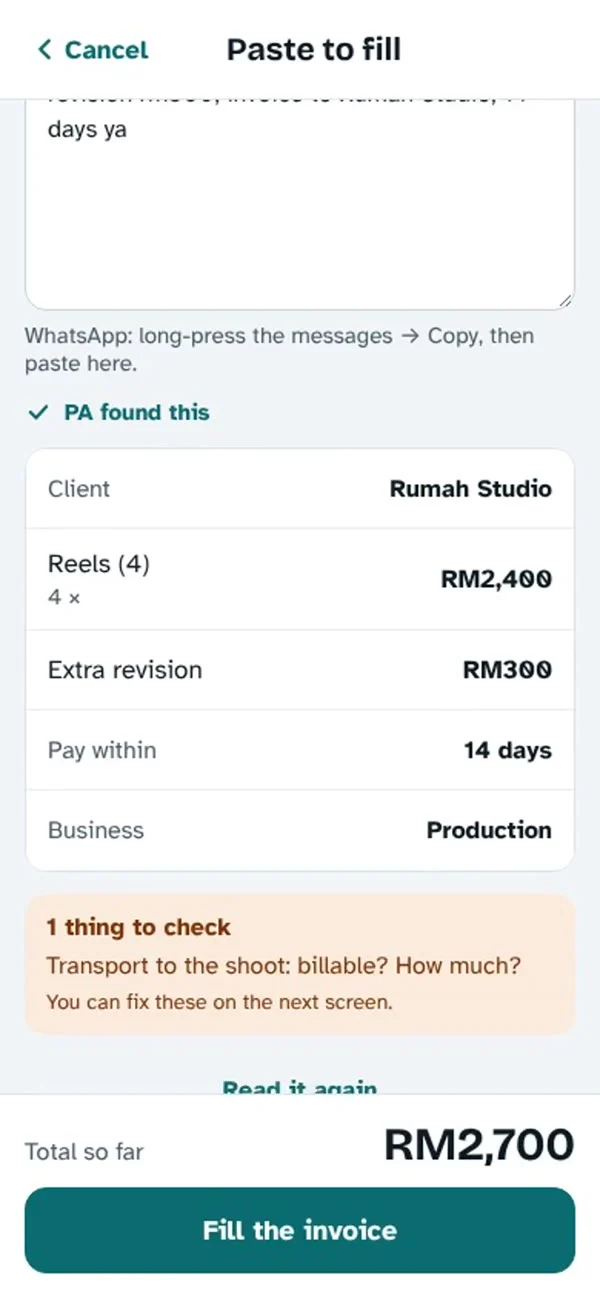
4. Invoices from a WhatsApp chat
He pastes the chat where the client confirmed the job (“ok confirm 4 reels 2.4k plus 1 extra revision rm300”). AI fills in the client, the line items, the price and the payment terms. The app makes the PDF and he sends it.
5. Chasing payments
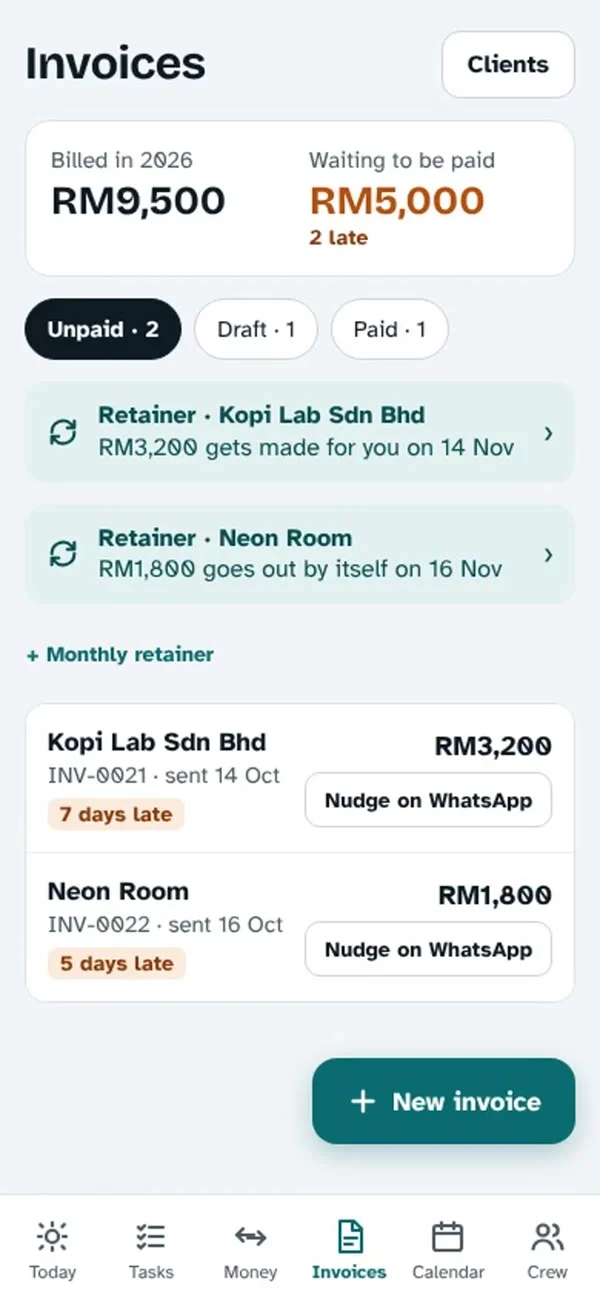
Every invoice shows if it’s a draft, sent, late or paid. Late ones turn orange with how many days late. Monthly retainers draft themselves on the set day. “Nudge on WhatsApp” opens WhatsApp with the message already written. He still presses send.
6. Tax, already added up
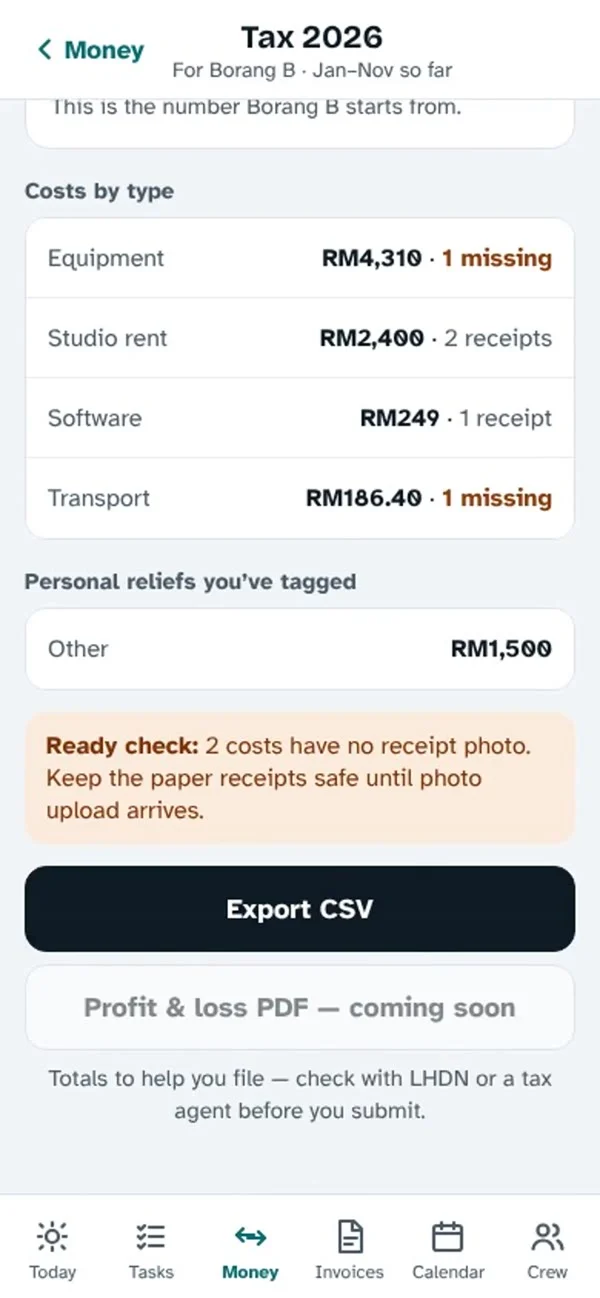
15% of every payment goes into a tax pot, so the money is there in April. Income and costs are added up for the year by type, and it flags costs that are missing a receipt. Export a CSV for your accountant.
7. A morning briefing
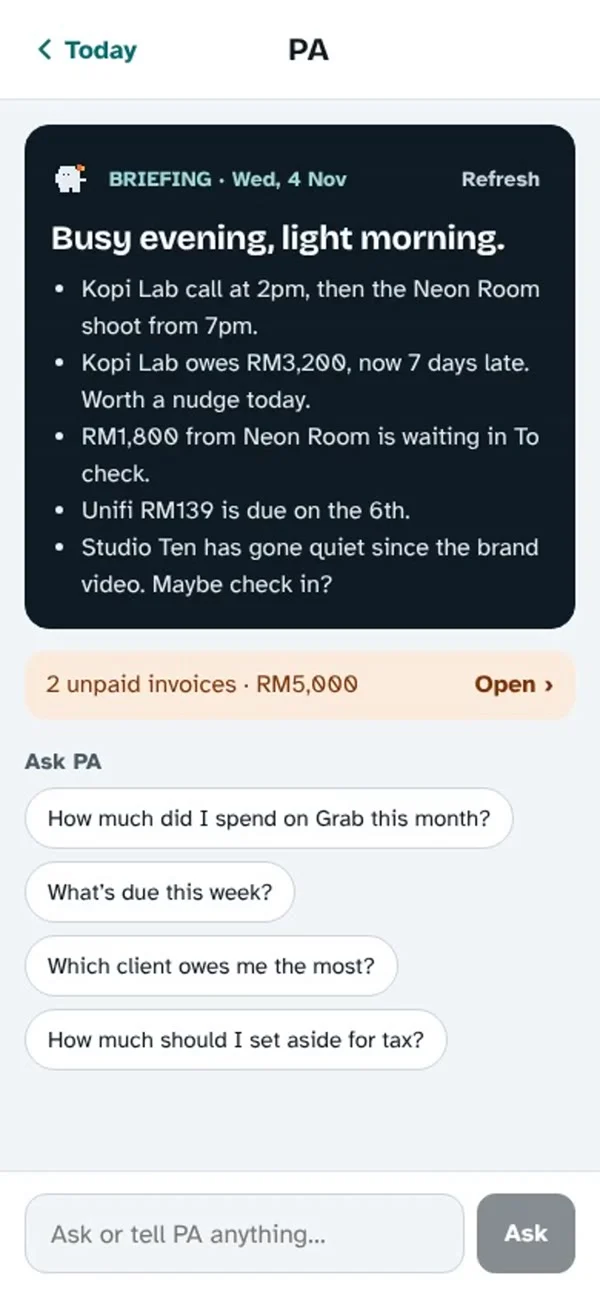
Every morning at 8:30, AI reads his calendar and his money and writes a short briefing: what’s on, who owes him, what’s due. He can also just ask it things like “how much did I spend on Grab this month?”
8. An AI crew
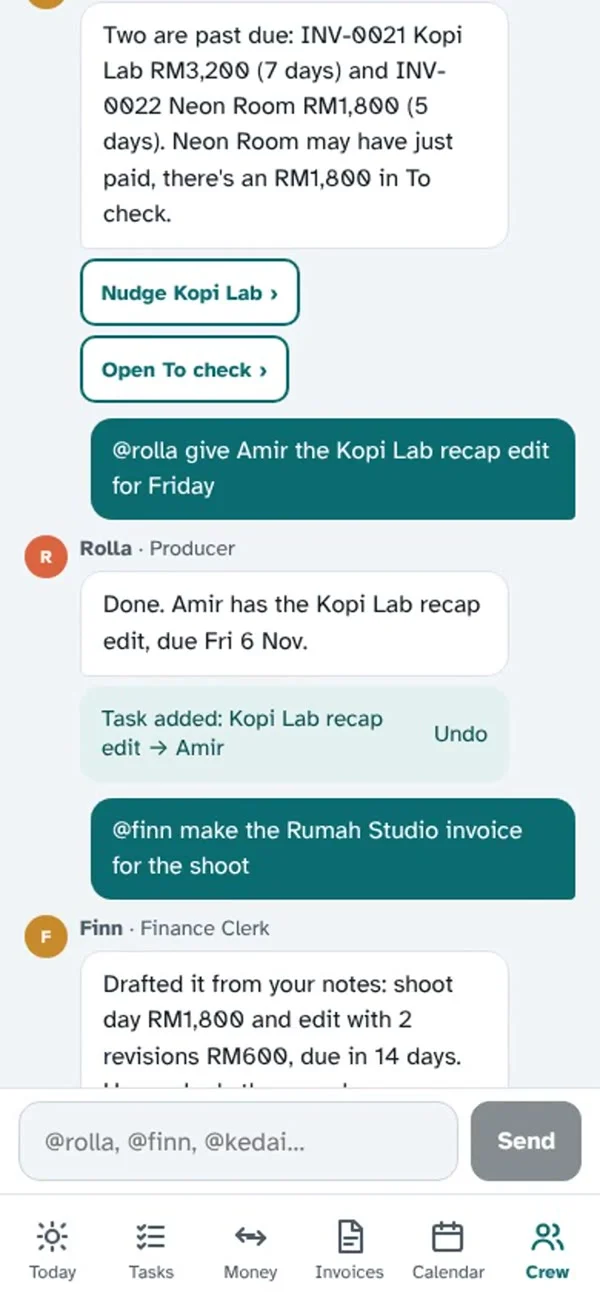
Instead of one chatbot, there are a few “crew members” with jobs. @finn handles money, @rolla handles shoots. He types “@finn make the Rumah Studio invoice” and Finn drafts it. They can add tasks too, each with an undo button.
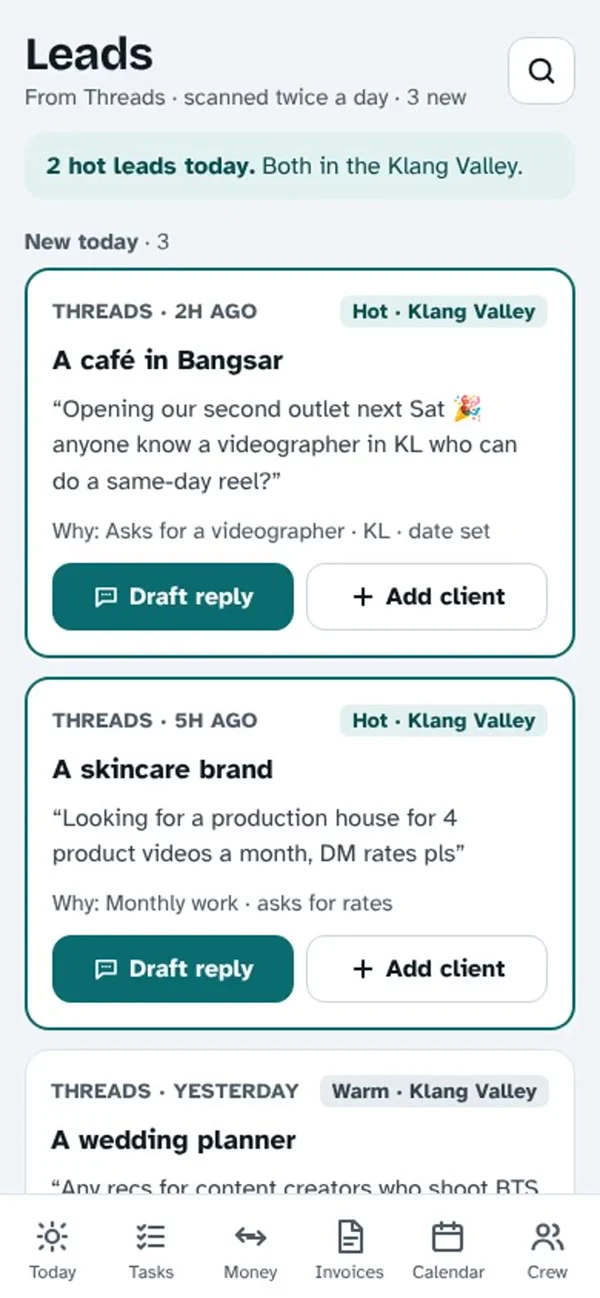
9. New clients from Threads
Twice a day it searches Threads for people asking for a videographer. AI scores whether they’re actually hiring or just chatting, and the good ones come with a reply already drafted.
What it runs on
No app store and no big platform. It’s a website that behaves like an app.
| Piece | What it does | Cost |
|---|---|---|
| Next.js web app (PWA) | The app itself. Added to the iPhone Home Screen, it opens full screen like a normal app. | Free |
| Vercel | Hosting, plus a job that runs every 5 minutes to send reminders. | Free / US$20 |
| Neon Postgres | The database. | Free plan |
| Claude Haiku (Anthropic) | Reads notifications, receipts and chats; writes the briefing; runs the crew. | ~RM5 / month |
| iPhone Shortcuts | Forwards bank notifications and does quick money logging. | Free |
| Google Calendar, Drive, Gmail | Shows events, stores receipts, sends invoices. | Free |
| Threads API | Searches posts for leads. | Free |
| pdf-lib | Builds the invoice PDF. | Free |
How the bank alerts log themselves
This is the part people ask about most, so here’s the full flow.
Your bank already sends a notification for every payment. Newer iPhones let a Shortcut run automatically when a notification arrives from a specific app (this trigger needs iOS 27 or later). The Shortcut sends the notification text to your app, AI turns it into an entry, and it waits in a “To check” list for one tap.
Setting up the Shortcut:
- In the Shortcuts app, open Automation → + → Notification.
- Pick your bank app (MAE, CIMB OCTO, Touch ’n Go…). Make one automation per app.
- Choose Run Immediately, so it doesn’t ask each time.
- Add Get Contents of URL with your app’s web address. Method POST, Request Body JSON, with
text= the notification content andapp= the bank’s name. - In the same action, add a header:
Authorization=Bearerplus a secret token only your app knows.
A few details that matter:
- The AI answers in fixed fields, not free text. It returns: is this money, is this a one-time code, in or out, amount, who, category. That makes it reliable, and if the AI is down the app falls back to a simple pattern match on “RM”.
- One-time codes are dropped. OTP and TAC messages never get saved.
- The Shortcut has its own token. It can add money entries and nothing else. Even if someone got it, they couldn’t open the rest of the app.
- Nothing is final until he taps. Everything lands in “To check” first.
There’s also a second Shortcut for logging cash by hand: double-tap the back of the phone, choose in or out, type the amount and what it was for. Five seconds.
How invoices get made from a chat
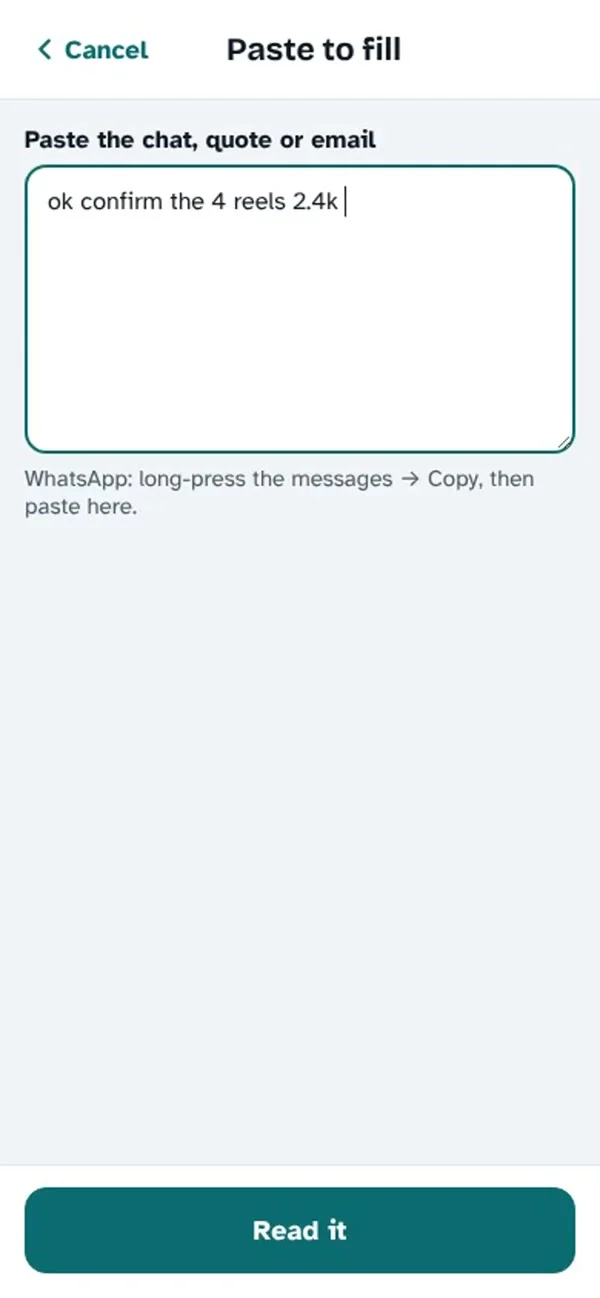
Same idea as the bank alerts: the AI doesn’t write the invoice, it fills a form. It returns the client name, each line with its amount, extra charges and the payment terms. Then normal code (no AI) builds the PDF with his business and bank details from Settings, and gives it the next invoice number.
That split is the main lesson of this whole build: let AI read the messy human stuff, and let plain code do everything that has to be exact. Totals, invoice numbers and tax are never left to AI.
How reminders and the briefing work
A job runs every 5 minutes on the server. It checks what’s due and sends a push notification. On iPhone, web apps can only send notifications once they’re added to the Home Screen (iOS 16.4 and later), so that’s step one of setup.
The 8:30am briefing is the same job: at 8:30 it collects today’s calendar, unpaid invoices and what’s due, and asks Claude to write it up in a few lines.
Why it only costs RM5 a month
- It uses Claude Haiku, Anthropic’s smallest and cheapest model. For reading a bank notification you don’t need the smartest model.
- It only sends short bits of text: one notification, one chat, one receipt. Never the whole database.
- Anything that can be done without AI is done without AI.
Keeping it safe
It holds his money data, so this part isn’t optional:
- One passcode for the app, remembered for 180 days, with a “lock this phone” button.
- Google access is as narrow as it gets. Calendar is read-only. Drive can only see files the app made itself. Gmail can send but can’t read his inbox.
- Nothing goes out on its own. Invoices, WhatsApp nudges and anything the crew drafts wait for his tap.
How to build your own
You don’t need to copy all nine features. Most people need two or three. Here’s the order I’d go in.
- Write down what you repeat every week. Not what sounds cool. The thing you keep doing by hand: chasing payments, typing invoices, finding receipts.
- Pick one and build only that. For most freelancers it’s invoices or logging money.
- Set up the basics: a Next.js app on Vercel, a free Neon database, and a passcode login. This is the skeleton everything else hangs on.
- Add AI only where text is messy. Get a Claude API key, and ask for fixed fields back, never free text.
- Add it to your Home Screen and use it for a week before adding anything else.
- Then add the next thing. That’s how this app grew: one “babe, remind me” at a time.
If you build with an AI coding tool (Claude Code, Cursor and similar), here’s a starting prompt you can paste and change:
Build me a mobile-first web app (Next.js, installable as a PWA) for my
one-person [your business] business. Start with ONE feature:

[e.g. "Paste a WhatsApp chat where a client confirms a job, and turn it
into an invoice: client name, line items, amounts, payment terms.
Generate a PDF with my business and bank details."]

Rules:
- Use Claude Haiku via the Anthropic API, and make it return fixed JSON
  fields (validate with zod). Never let AI do maths or invoice numbers.
- Store data in Postgres (Neon). Protect the app with one passcode.
- Nothing is sent to a client without me tapping a button.
- Keep it simple enough that I can add one feature at a time later.
What’s not done yet
Honest list:
- The automatic bank-notification trigger needs iOS 27 or later. On older iPhones, use the manual quick-log Shortcut.
- The crew chat history lives on one phone and doesn’t sync yet.
- There’s one passcode for everyone, so teammates can’t have their own logins.
- After an update, you sometimes have to close and reopen the app to see it.
Is it worth it?
He still asks me to remind him things. But now it’s things the app hasn’t thought of yet, which is how I know what to build next.